The Open OnDemand Dashboard
The dashboard is the first screen you see after logging in at https://ondemand.ace.ac.ug. It is the central hub from which you navigate to every other part of the portal.
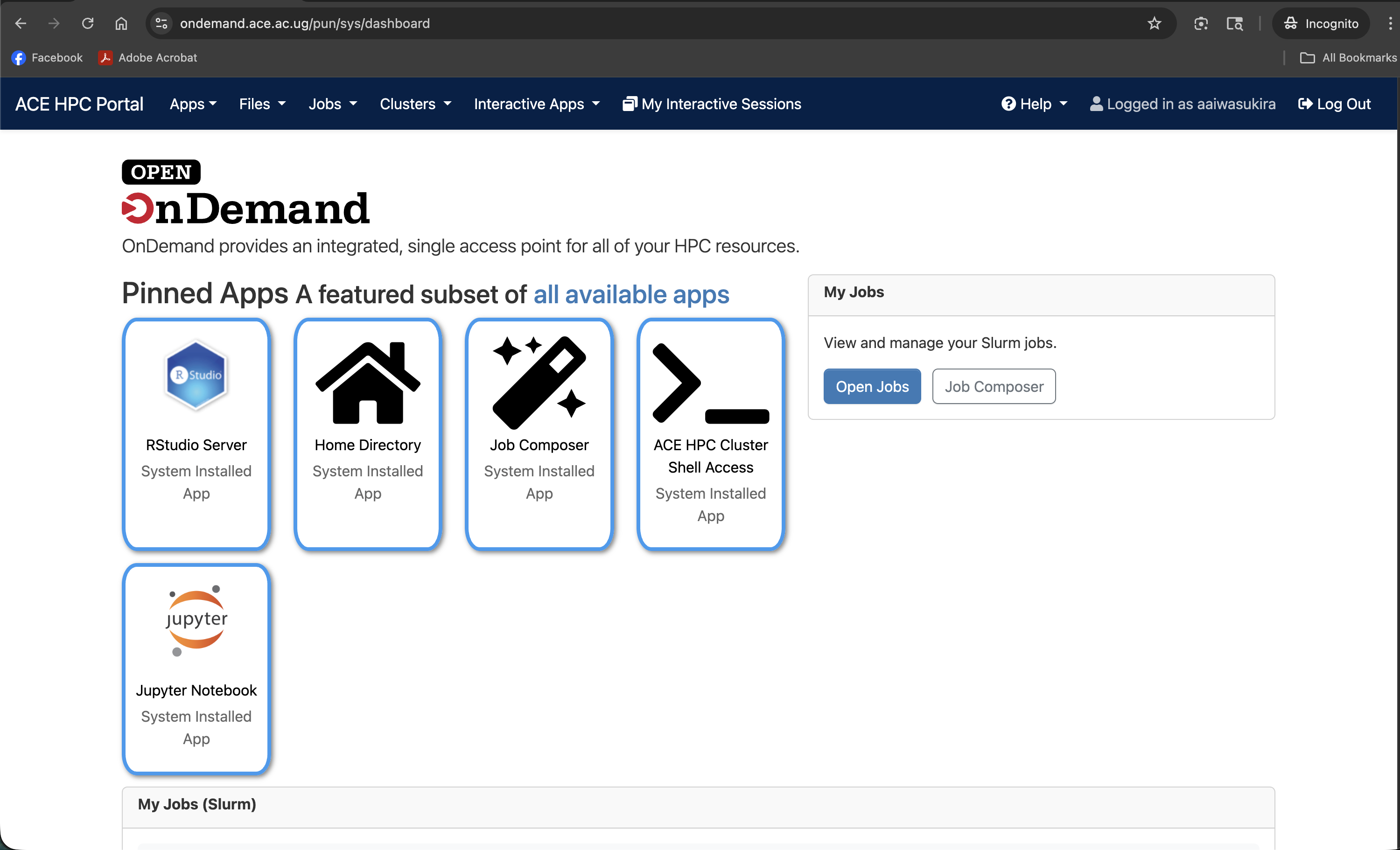
The Navigation Bar
The navigation bar runs along the top of every page in the portal. It has five menus:
| Menu item | What it contains |
|---|---|
| ACE HPC (logo/home) | Returns you to the dashboard from any page |
| Files | Dropdown with links to your home directory and other accessible paths |
| Jobs | Dropdown with Active Jobs and Job Composer |
| Clusters | Dropdown with ACE HPC Shell Access |
| Interactive Apps | Dropdown listing RStudio Server and Jupyter Notebook |
Files menu
Clicking Files reveals a dropdown with at least one entry:
- Home Directory — opens the file manager pointed at
/etc/ace-data/home/<your-username>

Jobs menu
The Jobs dropdown contains two items:
- Active Jobs — shows a live table of your currently running and queued SLURM jobs
- Job Composer — a form-based tool for writing and submitting SLURM scripts without a terminal
Clusters menu
The Clusters dropdown contains:
- ACE HPC Shell Access — opens a full bash terminal in your browser, connected to a login node
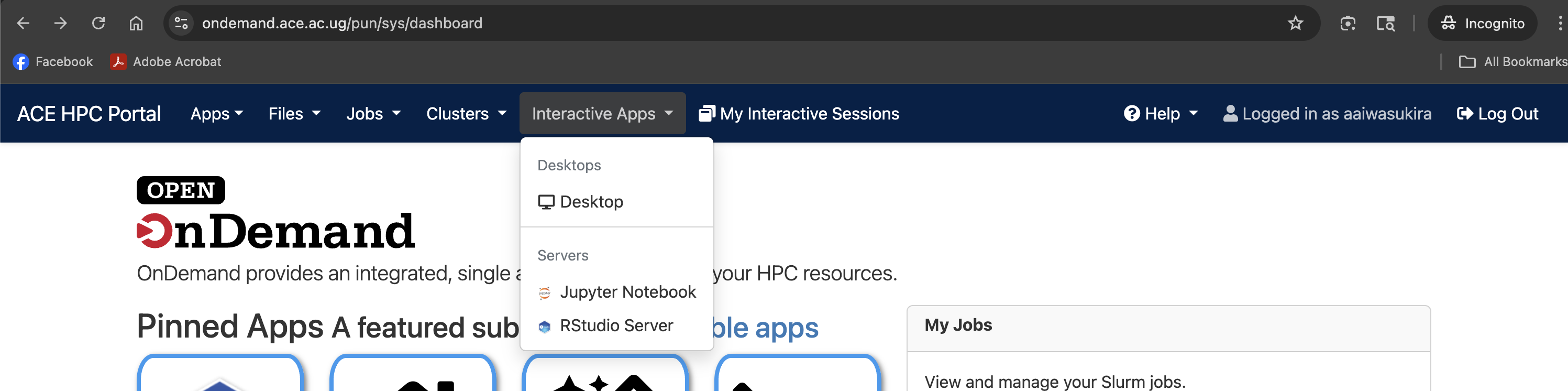
Interactive Apps menu
The Interactive Apps dropdown lists all available interactive applications:
- RStudio Server — launches a private RStudio session on a compute node
- Jupyter Notebook — launches a Jupyter Notebook or JupyterLab session on a compute node
The Dashboard Body
Below the navigation bar, the dashboard displays:
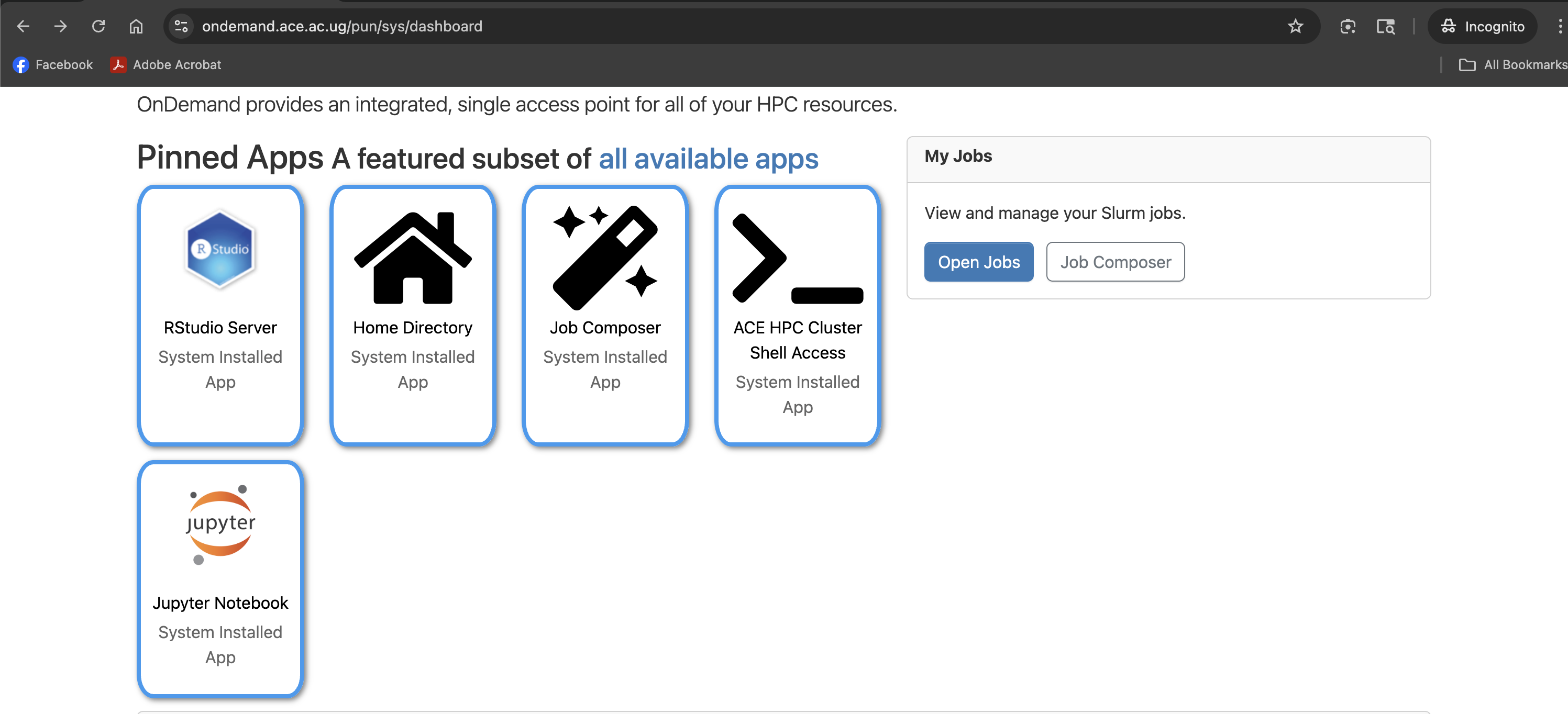
Pinned Apps
A row of clickable tiles for the most commonly used applications. Clicking a tile takes you directly to the launch form for that app. You will typically see tiles for RStudio Server and Jupyter Notebook here.
Announcements / Message of the Day
If the ACE HPC systems team has posted a maintenance notice or an important system announcement, it will appear as a highlighted message near the top of the dashboard. Always read this section before starting a long interactive session, as it may warn you of scheduled downtime.
My Interactive Sessions
When you have interactive app sessions running (RStudio, Jupyter), a panel called My Interactive Sessions appears on the dashboard showing the status of each session. From here you can:
- Connect — click the button to open the running app in a new browser tab
- Delete — terminate the session and release the compute node resources
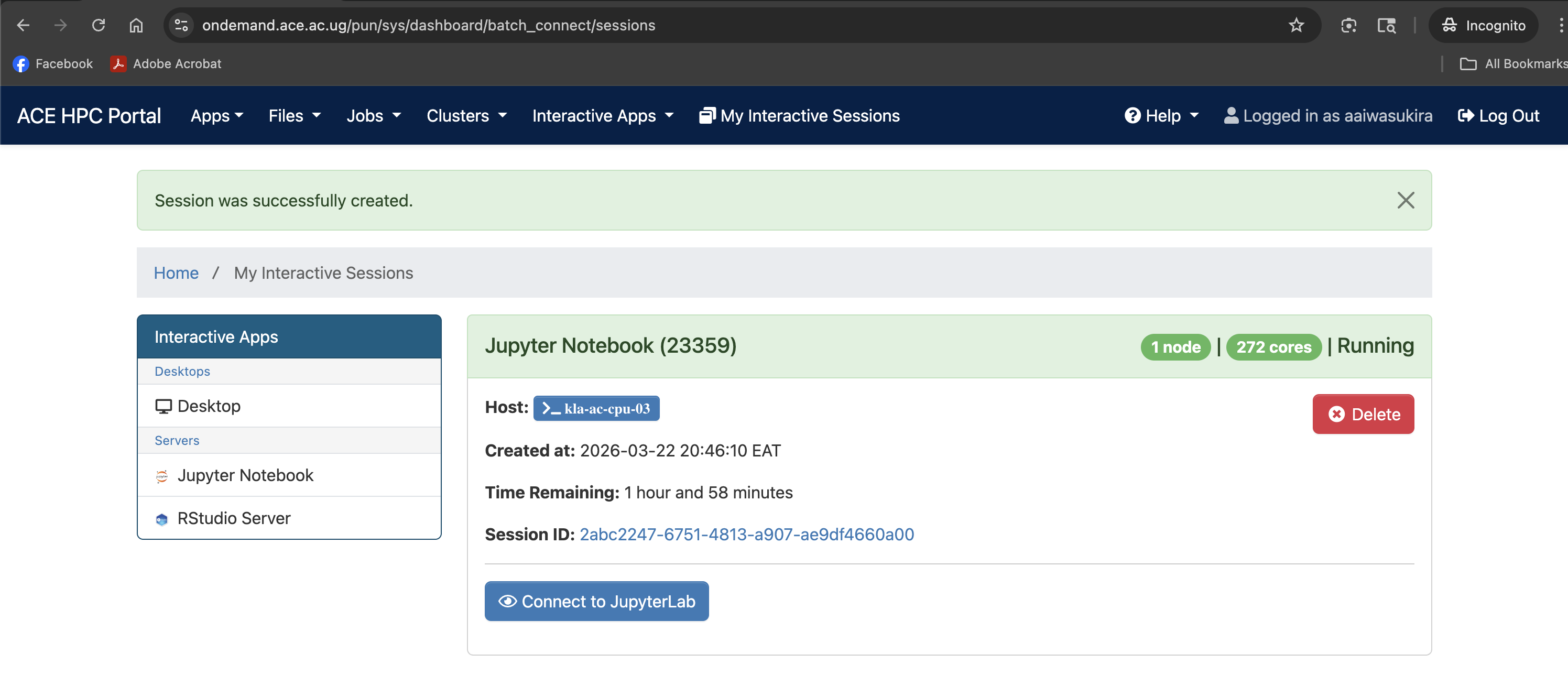
Interactive sessions consume SLURM compute resources for their entire duration, even when you are not actively using the browser tab. Always delete sessions when you are done to free resources for other users.
Logging Out
To log out of the portal, click your username in the top-right corner of the navigation bar and select Log Out. This ends your portal session but does not cancel any SLURM jobs that are already running.