File Manager
The Open OnDemand file manager lets you browse, upload, download, create, edit, move, copy, and delete files on the ACE HPC cluster — all without leaving your browser.
To open the file manager, click Files in the navigation bar and select Home Directory.
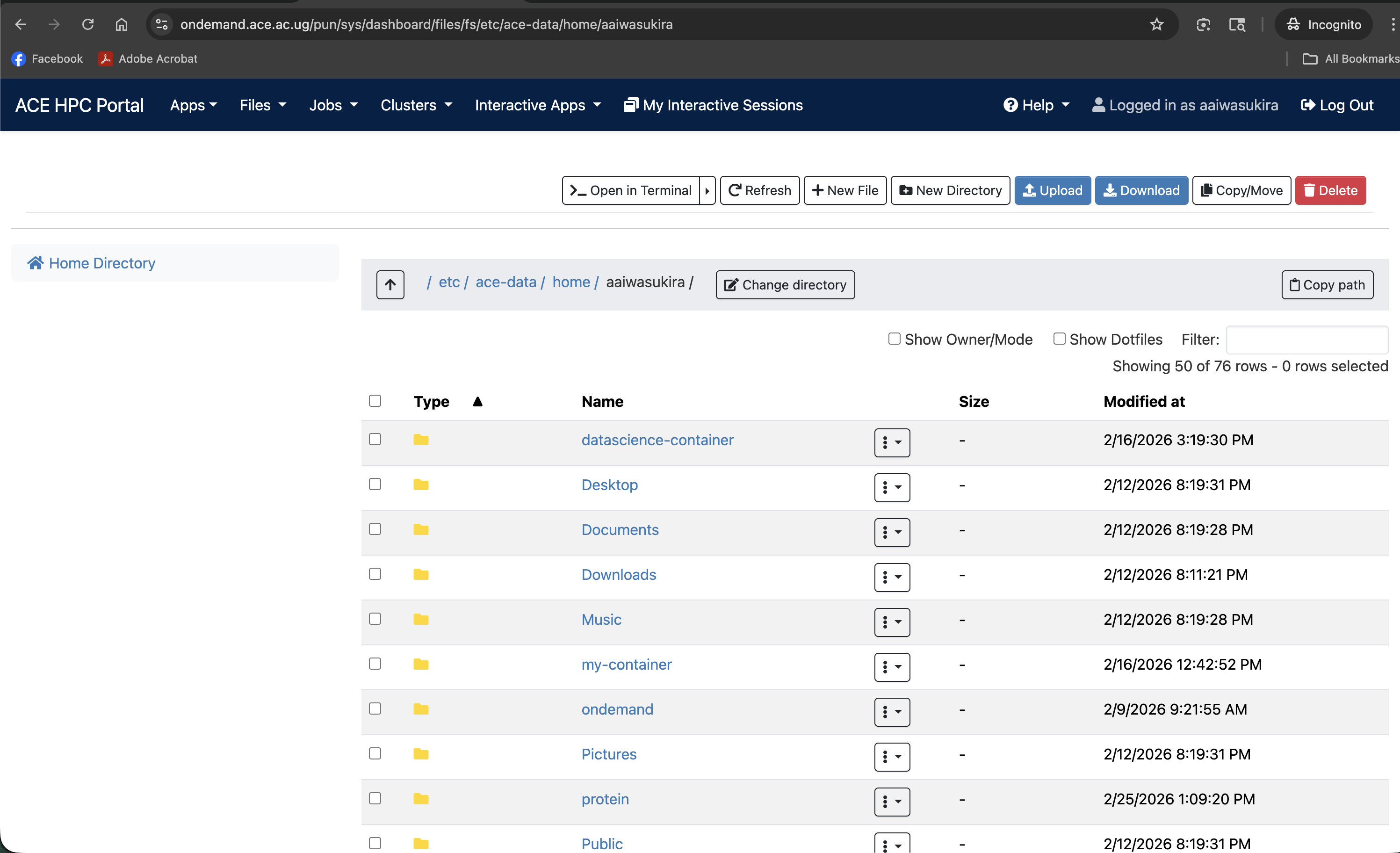
Understanding the Layout
| Area | Purpose |
|---|---|
| Address bar | Shows your current path; you can type a path directly to jump to it |
| Directory tree | Left panel for navigating the folder hierarchy |
| File listing | Right panel showing files and folders in the current directory |
| Toolbar | Buttons for uploading, creating files/folders, and changing view |
Navigating Directories
- Click a folder in the file listing to open it
- Click the arrow (▶) next to a folder in the directory tree to expand it
- Click any path segment in the address bar to jump up to that level
- Type a full path (e.g.,
/etc/ace-data/home/<your-username>) directly into the address bar and press Enter
Your home directory has a limited quota. For large analysis files, please reach out to the HPC support team to request for extra space for your datasets
Uploading Files
To upload files from your local computer to the cluster:
- Navigate to the destination directory in the file manager
- Click the Upload button in the toolbar
- A file picker dialog opens — select one or more files from your local machine
- The files are transferred to the current directory on the cluster
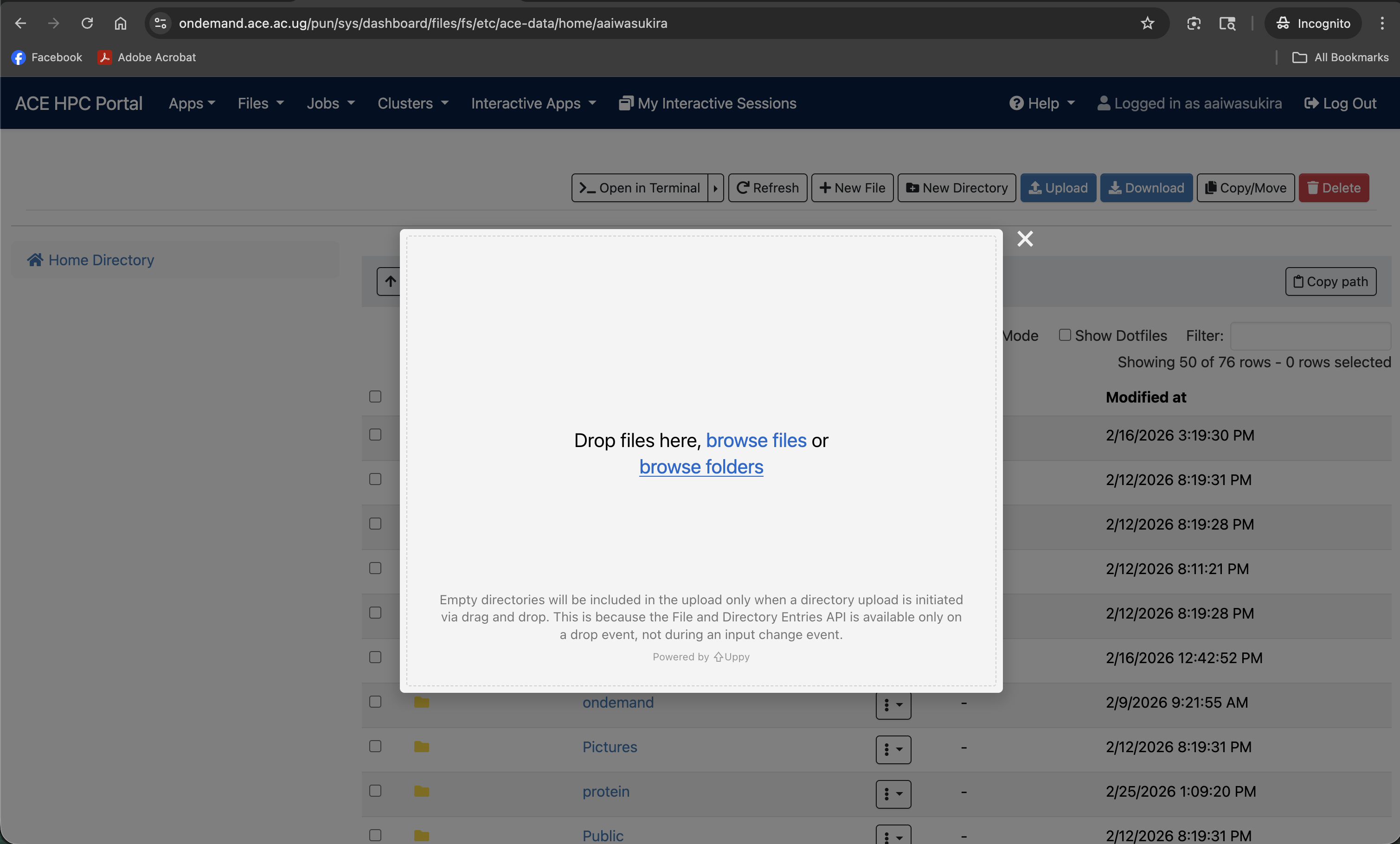
The web upload is suitable for small to medium files (configuration files, scripts, small datasets). For large files (> 1 GB), use scp or rsync over SSH instead, as browser uploads can time out.
Downloading Files
To download a file from the cluster to your local computer:
- Find the file in the file listing
- Right-click the file (or click the checkbox to select it, then click the Download button in the toolbar)
- Your browser will prompt you to save the file
You can only download individual files through the portal, not entire directories. To download a folder, first compress it into a .tar.gz archive using the Shell Access, then download the archive file.
Creating Files and Folders
Use the New File and New Directory buttons in the toolbar:
| Button | What it creates |
|---|---|
| New File | Creates an empty file with the name you specify |
| New Directory | Creates a new folder with the name you specify |
Editing Files in the Browser
For plain-text files (scripts, configuration files, small data files), Open OnDemand includes a built-in text editor:
- Click on the file name to open it
- The file opens in a browser-based editor with syntax highlighting for common languages (Python, R, bash, etc.)
- Make your edits
- Click Save to write the changes back to the cluster
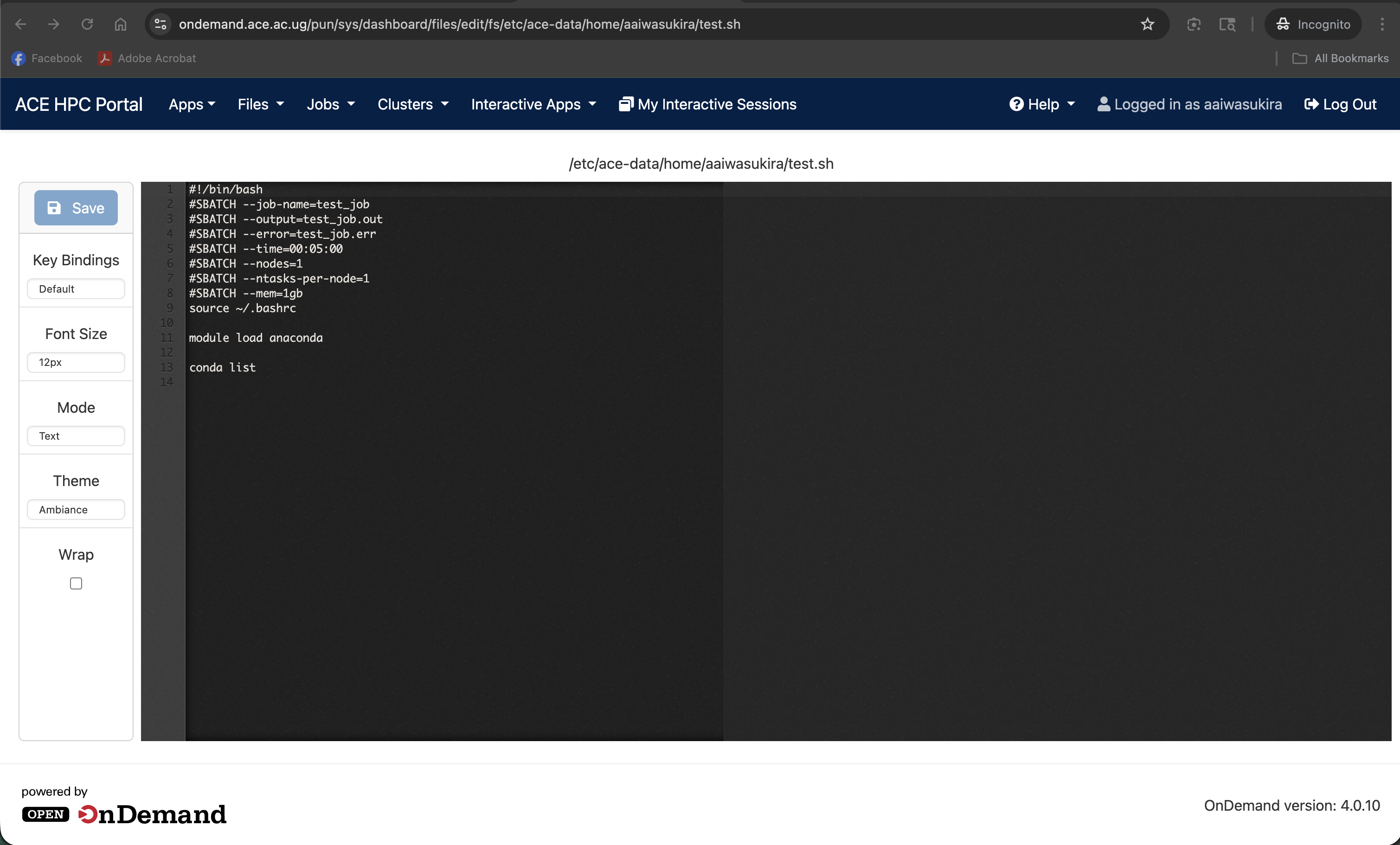
The built-in editor is convenient for quick edits to job scripts or configuration files. For heavy editing, the Shell Access gives you access to nano, vim, or emacs.
Moving, Copying, and Renaming Files
To move, copy, or rename files:
- Select one or more files by clicking the checkbox to the left of the filename
- Use the buttons that appear in the toolbar:
- Move — move selected items to a different directory (you will be prompted to choose the destination)
- Copy — duplicate selected items to another directory
- Rename — change the name of a single selected item
- Delete — permanently remove selected items (there is no trash/recycle bin)
Screenshot note: Add a screenshot of the file manager with one or more files selected, showing the Move/Copy/Rename/Delete buttons in the toolbar.
There is no recycle bin on ACE HPC. Deleted files cannot be recovered. Double-check your selection before clicking Delete.
Changing the View
The file manager supports two view modes:
- List view (default) — shows files in a table with name, size, and date
- Grid view — shows files as icons, useful for quickly scanning a directory with many subfolders
Click the view toggle button in the top-right of the file listing to switch between them.