Shell Access
Clusters → ACE HPC Shell Access opens a fully functional bash terminal inside your browser. This gives you command-line access to the ACE HPC login node without needing an SSH client or key setup.
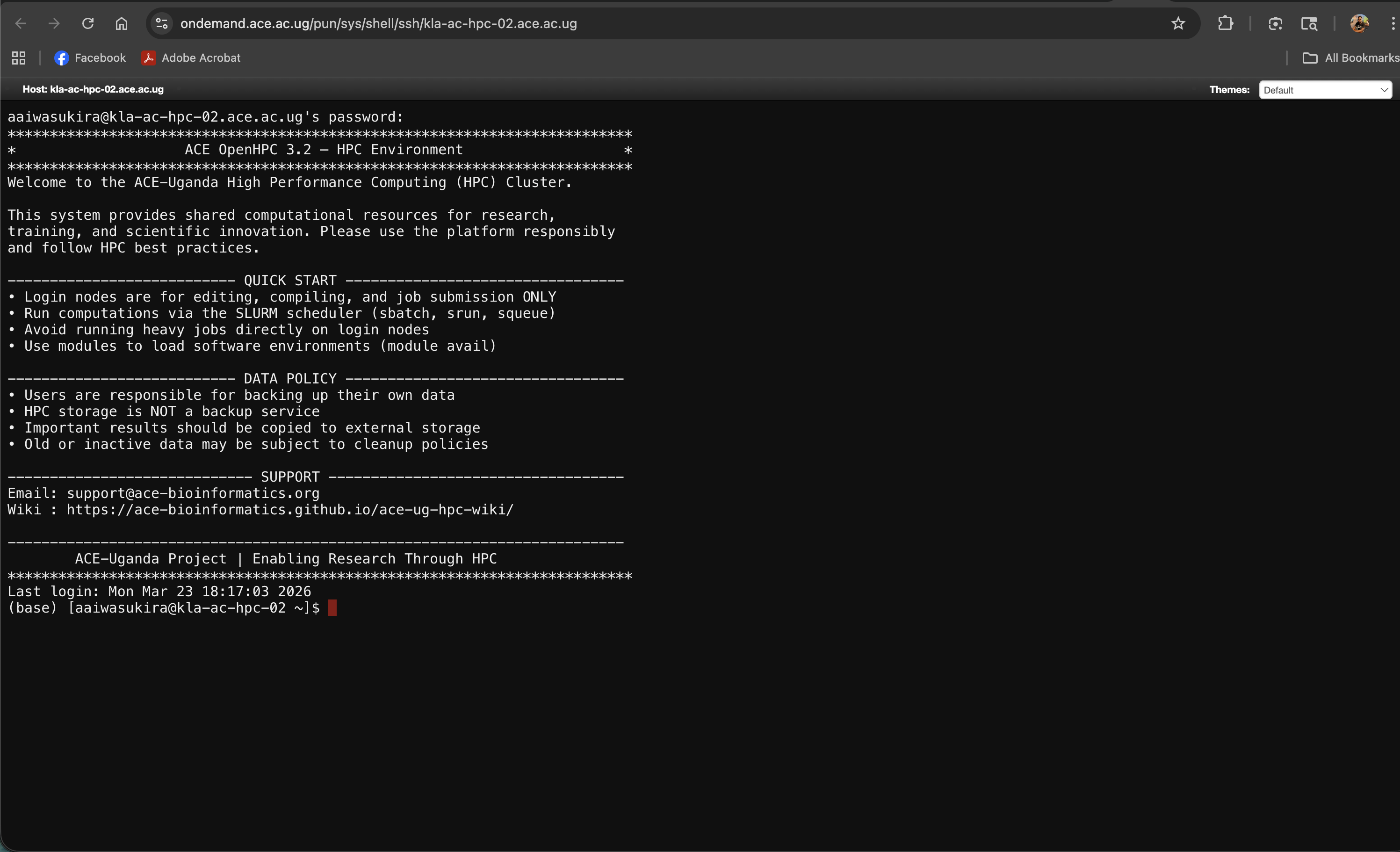
Screenshot note: A screenshot of the Shell Access terminal immediately after it opens, showing the bash prompt and the welcome/MOTD message.
Opening a Shell
- In the navigation bar, click Clusters
- Select ACE HPC Shell Access
- A new browser tab opens with a black terminal window
- After a few seconds the terminal connects and displays the bash prompt:
[username@kla-ac-hpc-login ~]$
You are now on the login node of ACE HPC, exactly as if you had SSH'd in.
What you can do from the shell
Everything you would normally do over SSH is available here:
- Load software modules:
module load python/3.10 - Submit SLURM jobs:
sbatch my_job.sh - Check your queue:
squeue -u $USER - Cancel a job:
scancel <job_id> - Navigate and manage files:
ls,cd,cp,rm, etc. - Edit files:
nano,vim, oremacs - Check disk usage:
df -h,du -sh ~/ - Run quick tests before submitting to the queue:
python -c "import numpy; print(numpy.__version__)"
Copying and pasting
The in-browser terminal has slightly different clipboard behaviour depending on your operating system and browser:
| OS | Copy | Paste |
|---|---|---|
| Linux | Select text with mouse (auto-copies) | Middle-click |
| macOS | Cmd + C | Cmd + V |
| Windows | Ctrl + C (after selecting) | Ctrl + V or right-click → Paste |
If keyboard shortcuts do not work, right-click inside the terminal window for a context menu with copy/paste options.
Resizing the terminal
The terminal automatically fills the browser tab. If it appears too small, try:
- Zooming your browser out (
Ctrl -orCmd -) - Dragging the browser window wider
- Running
resizein the terminal to force it to re-read the window dimensions
Limitations compared to SSH
The browser-based shell works well for most tasks, but has a few limitations you should be aware of:
| Limitation | Details |
|---|---|
| Interactive TUI programs | Programs like htop or tmux may behave unexpectedly or have rendering artefacts in some browsers |
| Session persistence | If your browser tab closes or your internet disconnects, the session ends and any foreground process is killed. Use tmux or screen to protect long-running processes |
| File transfer | You cannot drag-and-drop files into the terminal. Use the File Manager for transfers |
| X11 / GUI forwarding | Graphical applications launched from the terminal will not display. Use the Interactive Apps for GUI-based tools |
If you plan to run a command that takes more than a few minutes (such as building software or running a quick test), wrap it in a tmux session. This way, if your browser disconnects, the command continues running and you can re-attach later.
# Start a new tmux session
tmux new -s mysession

# Run your command
./configure && make install

# Detach safely (the process keeps running)
# Press Ctrl+B, then D

# Later, re-attach from any shell session
tmux attach -t mysession
When to use Shell Access vs SSH
| Situation | Use |
|---|---|
| Quick file operations or job submission from any machine | Shell Access (OOD) |
| You need to transfer large files | SSH + scp/rsync |
| You need X11 forwarding for a GUI app | SSH with -X flag |
| You want persistent sessions you can reconnect to reliably | SSH + tmux/screen |
| You are behind a firewall blocking SSH port 22 | Shell Access (OOD) |