Job Management
The Jobs menu in Open OnDemand gives you two tools for working with SLURM batch jobs without opening a terminal: a live view of your active jobs, and a form-based job composer for writing and submitting scripts.
Active Jobs
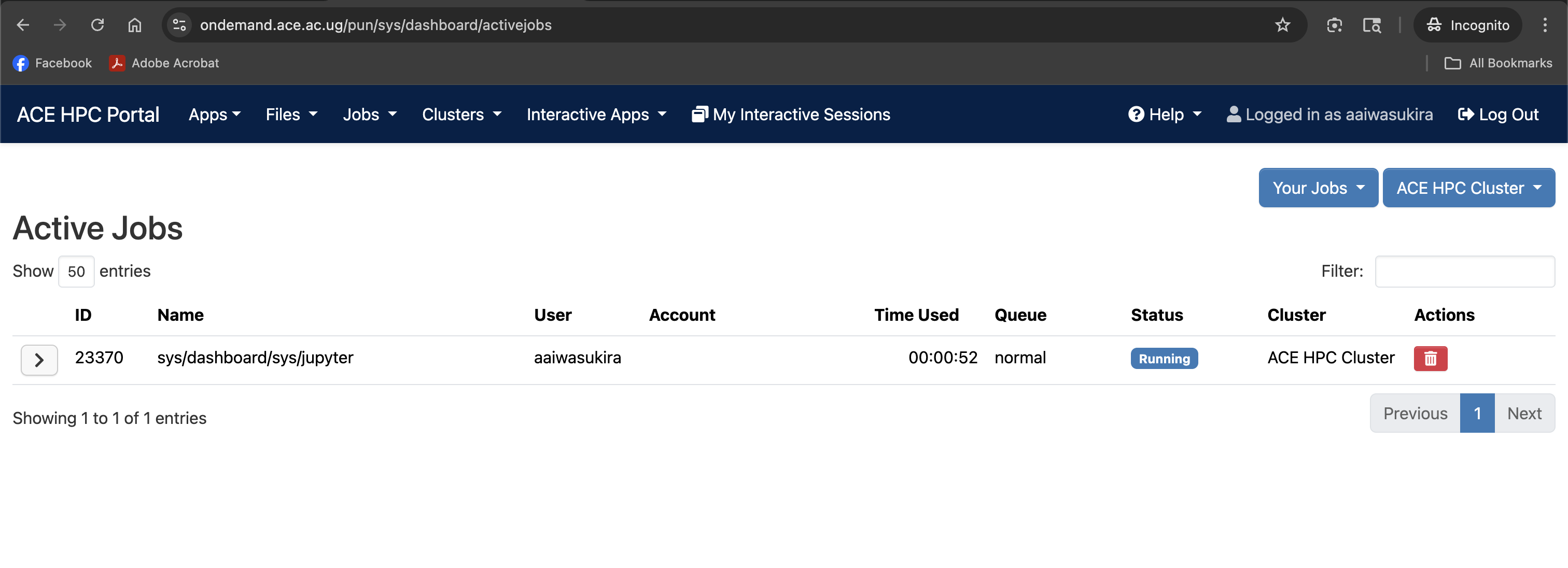
Jobs → Active Jobs shows a live table of all SLURM jobs currently associated with your account — running, pending, completing, and recently finished.
Reading the jobs table
Each row represents one job. The columns are:
| Column | Description |
|---|---|
| ID | The SLURM job ID assigned at submission |
| Name | The job name from #SBATCH --job-name |
| User | Your username |
| Account | The SLURM account charged for this job |
| Partition | The partition (queue) the job is running or waiting in |
| Status | Current status: RUNNING, PENDING, COMPLETED, FAILED, etc. |
| Time Used | How long the job has been running |
| Time Limit | The wall-time limit requested |
| Nodes | Number of nodes allocated |
| Reason | For pending jobs, why SLURM is holding the job (e.g., Resources, Priority) |
ACE HPC partitions
Jobs on ACE HPC are submitted to one of the following SLURM partitions:
| Partition | Intended use | Default time limit | Max time limit |
|---|---|---|---|
shared | Shared CPU compute | 1 hour | Unlimited |
extended | Exclusive CPU usage | 1 hour | Unlimited |
gpu | Jobs requiring a GPU | 1 hour | 48 hours |
Partition names, time limits, and resource caps are subject to change. Run sinfo from the Shell Access or check with the systems team for the current configuration.
Filtering and sorting
Use the filter box at the top of the table to search for a specific job by name or ID. Click any column header to sort the table by that column.
Cancelling a job
To cancel a running or pending job:
- Find the job in the table
- Click the red delete icon (trash can) in the rightmost column of that row
- Confirm the cancellation in the prompt that appears
This is equivalent to running scancel <job_id> in the terminal.
Job Composer
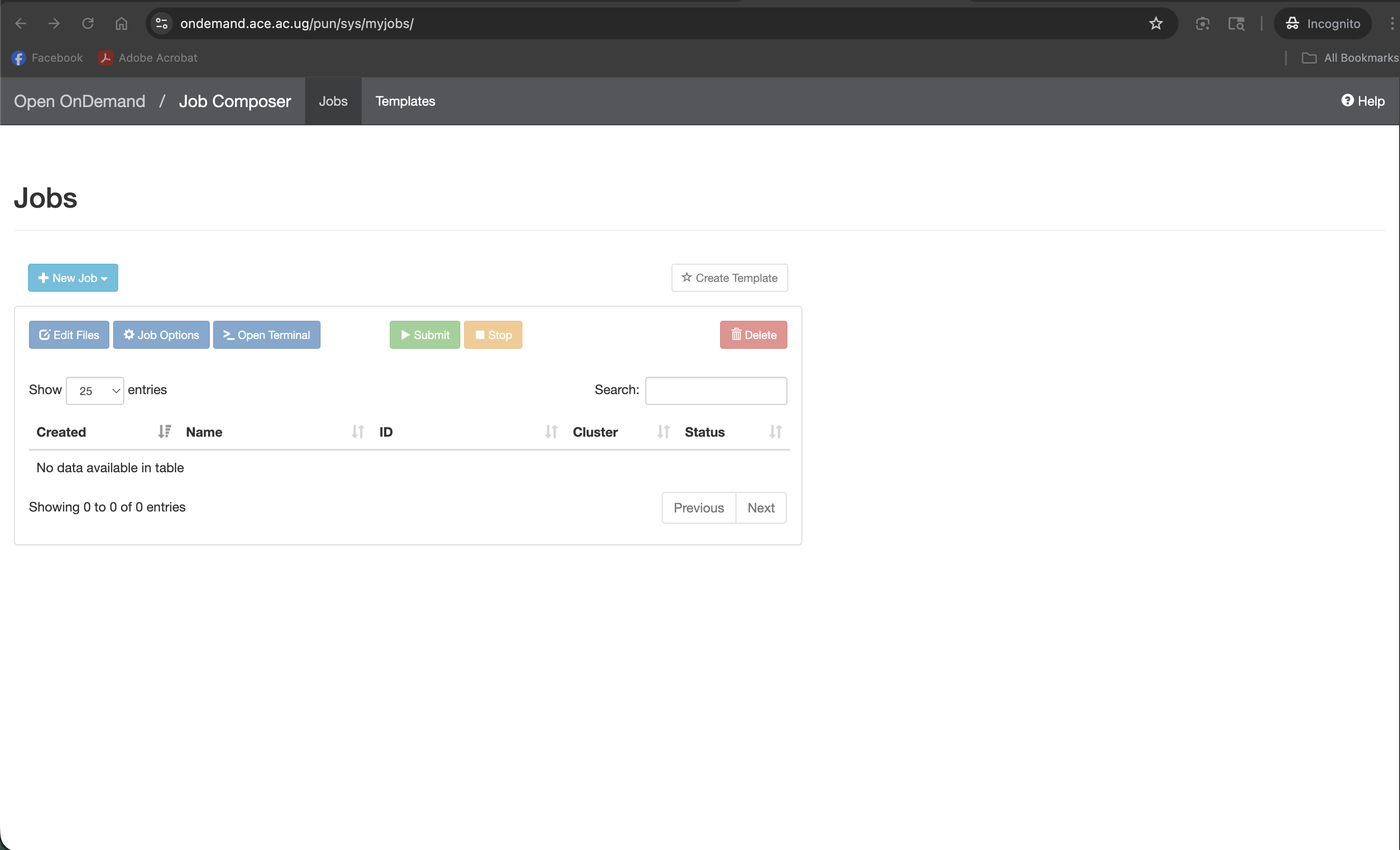
Jobs → Job Composer lets you create, edit, and submit SLURM batch scripts entirely through the browser — no terminal needed.
Creating a new job
- Click New Job → From Default Template (or choose a saved template if one exists)
- A new job entry is created and opens in edit mode
The job composer shows three panels:
  ┌──────────────────────┬───────────────────────────────────────┐
  │  Job list (left)     │  Job Script Editor (right)            │
  │                      │                                       │
  │  ▶ My job 1          │  #!/bin/bash                          │
  │  ▶ My job 2          │  #SBATCH --job-name=my_job            │
  │  [+ New Job]         │  #SBATCH --partition=normal           │
  │                      │  #SBATCH --nodes=1                    │
  │                      │  #SBATCH --ntasks=1                   │
  │                      │  #SBATCH --mem=4G                     │
  │                      │  #SBATCH --time=01:00:00              │
  │                      │                                       │
  │                      │  module load python/3.10              │
  │                      │  python my_script.py                  │
  └──────────────────────┴───────────────────────────────────────┘
Editing the job script
The right panel is a text editor where you write or paste your SLURM script. A minimal script for ACE HPC looks like this:
#!/bin/bash
#SBATCH --job-name=my_analysis
#SBATCH --partition=normal
#SBATCH --nodes=1
#SBATCH --ntasks=4
#SBATCH --mem=16G
#SBATCH --time=02:00:00
#SBATCH --output=job_%j.out
#SBATCH --error=job_%j.err

module load python/3.10
python my_analysis.py --threads 4
See Writing Job Scripts for a full explanation of every directive.
Setting the job working directory
Below the script editor, there is a Job Directory field. This controls where SLURM will create the output (.out) and error (.err) files. Set this to the directory where your input data and scripts live, for example /etc/ace-data/<your-username>/projects/my_project.
You can also click Select Path to browse your filesystem and choose the directory graphically.
Submitting the job
Once your script is ready:
- Click Save to save the script
- Click Submit — the green button in the toolbar
The job will be queued in SLURM. You will see a confirmation message with the assigned job ID, and the job will appear immediately in Active Jobs.
If you already have a working SLURM script on the cluster, the easiest approach is to paste it directly into the Job Composer editor rather than retyping it. Use the Shell Access to cat your existing script, then copy and paste.
Managing saved jobs
The left panel lists all jobs you have composed. You can:
- Click a job to open and edit it
- Copy a job to use it as a template for a new one
- Delete a job to remove it from the list (this does not cancel a running SLURM job — it only removes the script from the composer)